
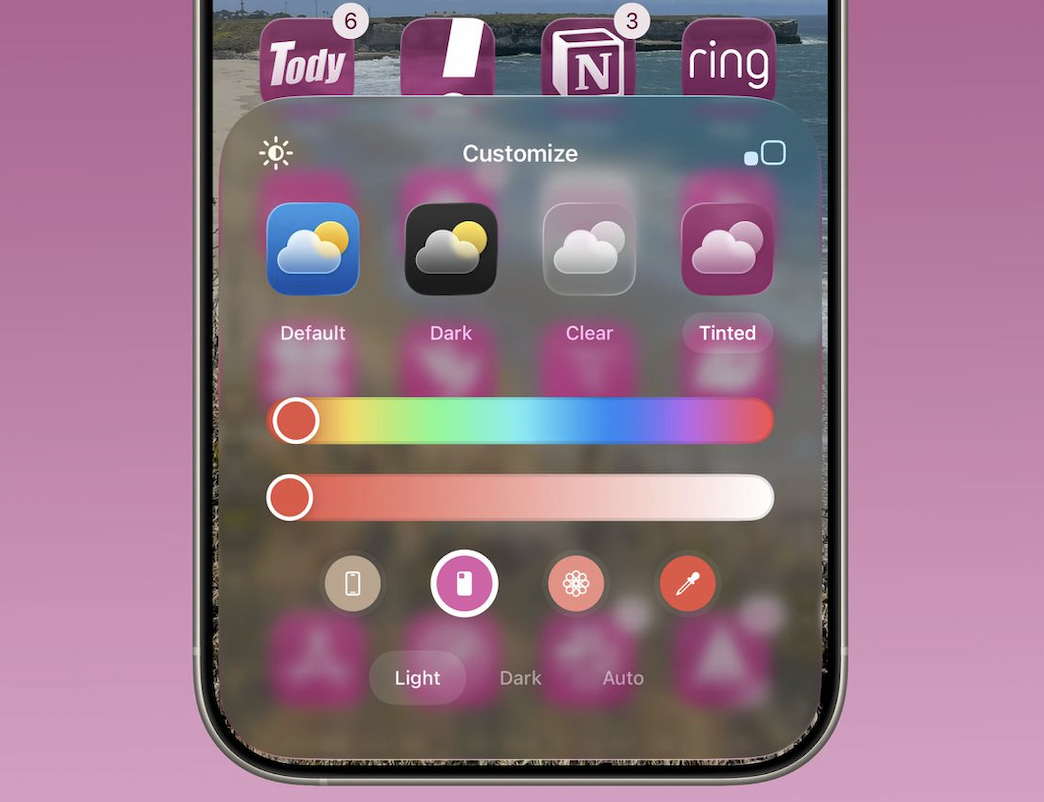
Apple continues expanding personalization features across the iPhone ecosystem. Consequently, users now enjoy more visual control than ever.
The latest update introduces smarter Home Screen customization. Moreover, iOS 26 adds an automatic tint option for app icons.
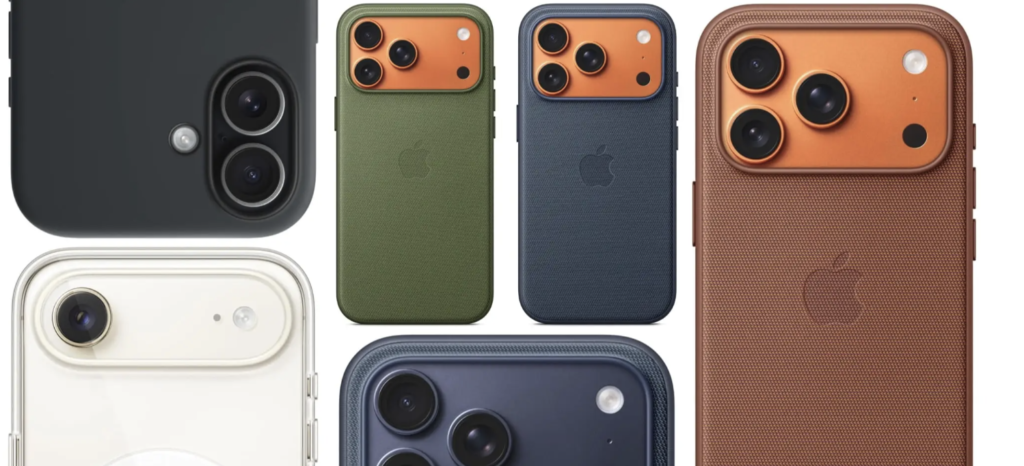
This feature matches icons with your iPhone color or case color. Therefore, your device now delivers a consistent and stylish visual theme.
Previously, users manually applied tinted icon styles. However, the process required manual color selection and adjustments.
Now, Apple simplifies everything through intelligent color detection. As a result, the Home Screen adapts instantly to your device’s appearance.
Why the iOS 26 Icon Tint Feature Matters
Modern smartphone users value visual identity. Therefore, customization features have become essential rather than optional.
Apple recognized this shift and gradually expanded personalization settings. Meanwhile, earlier updates introduced widgets, icon designs, and lock screen customization.
iOS 26 improves that experience further. Additionally, the new tint feature creates a seamless aesthetic across hardware and software.
Your app icons now blend perfectly with your device color. Consequently, the entire interface feels cohesive and refined.
Many users change iPhone cases regularly. Therefore, automatic case color matching becomes extremely useful.
The Home Screen instantly adapts to your current style. As a result, your iPhone always matches your mood or outfit.
How the Automatic Icon Color Matching Works
Apple designed the feature to work quickly and smoothly. Therefore, users can enable it in seconds.
The system detects the iPhone’s color profile automatically. Meanwhile, supported cases transmit color data through compatible hardware.
Once detected, the system applies a matching tint across app icons. Consequently, every icon adopts a consistent tone.
The interface remains clean and modern. Moreover, icons keep their recognizable shapes and symbols.
This balance preserves usability while enhancing visual harmony. Therefore, users enjoy beauty without losing clarity.
Step-by-Step Guide to Enable iOS 26 Icon Tint
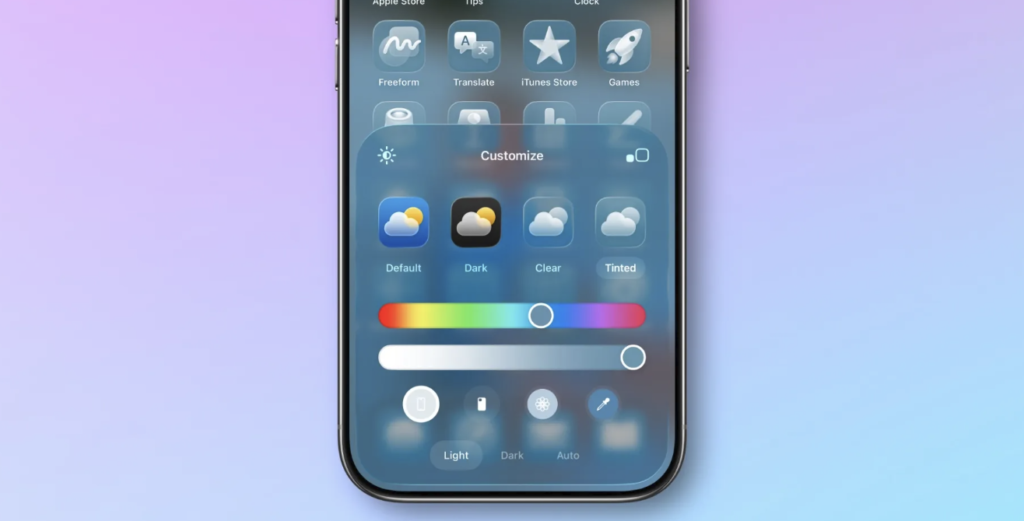
Follow these simple steps to activate the new tint feature. The process takes only a few seconds.
1. Access the Home Screen Editing Mode
First, press and hold any empty area on your Home Screen. Immediately, the editing mode appears.
2. Tap the Edit Button
Next, locate the Edit option in the top corner. Then tap it to open customization settings.
3. Select the Customize Option
After that, choose Customize from the available menu. Consequently, several visual options appear.
4. Choose the Tinted Style
Now select the Tinted icon style option. The system then reveals several color controls.
5. Enable Automatic Color Matching
Finally, choose one of the automatic tint buttons. One matches your iPhone color instantly.
The second option matches your compatible case color. Therefore, your Home Screen updates immediately.
Understanding the Available Tint Options
The customization panel displays several appearance settings. Therefore, users maintain complete control over their interface.
First, the iPhone Color Match option synchronizes icons with your device finish. Consequently, your Home Screen mirrors the hardware tone.
Second, the Case Color Match option detects supported case colors. As a result, icons adjust automatically.
Meanwhile, users still control brightness modes. Options include Light, Dark, and Auto modes.
This combination offers both flexibility and simplicity. Therefore, beginners and advanced users benefit equally.
Compatibility with iPhone Cases
Case color detection works with specific accessories. However, not every case supports automatic recognition.
Official magnetic cases typically work perfectly. Therefore, Apple-compatible accessories provide the best experience.
Some third-party cases also support the feature. However, compatibility depends on manufacturer design.
If detection fails, users can still apply manual tint colors. Consequently, customization remains available for everyone.
Creative Ways to Use the New Tint Feature
Many users enjoy experimenting with visual themes. Therefore, this feature opens creative design possibilities.
For example, match icons with a seasonal case color. Meanwhile, holiday themes become quick and effortless.
Fashion-focused users can coordinate their device with daily outfits. Consequently, the phone becomes part of personal style.
Minimalists can also benefit from subtle color palettes. Moreover, soft icon tones create a calm and organized interface.
Content creators often prefer visually cohesive setups. Therefore, consistent icon colors enhance screenshots and videos.
Tips for the Best Home Screen Aesthetic
Start by choosing a case with a bold color. Consequently, the automatic tint effect becomes more noticeable.
Next, organize apps into minimal pages. Meanwhile, reduce clutter to highlight the color theme.
Use matching wallpapers for stronger visual harmony. Therefore, icons blend smoothly with the background.
Additionally, combine tinted icons with widget customization. As a result, the entire Home Screen looks professionally designed.
Finally, experiment regularly with new case colors. Consequently, your interface remains fresh and exciting.
The Future of iPhone Customization
Apple continues expanding personalization features every year. Therefore, iOS customization will likely evolve further.
Future updates may introduce dynamic icon styles. Meanwhile, AI-driven themes could adjust automatically throughout the day.
Color matching already shows Apple’s design direction. Consequently, the company focuses on unified visual experiences.
Users now enjoy both creativity and simplicity. Therefore, customizing the iPhone feels easier than ever.
Final Thoughts
iOS 26 enhances the Home Screen customization experience with automatic icon tinting, creating a more polished and unified design.
The feature requires only a few taps to activate. Consequently, anyone can refresh their interface instantly.
Matching app icons with device colors creates a stylish appearance. Therefore, your iPhone feels more personal and expressive.
Try the new tint settings today. Meanwhile, explore different cases and themes for the perfect look.