
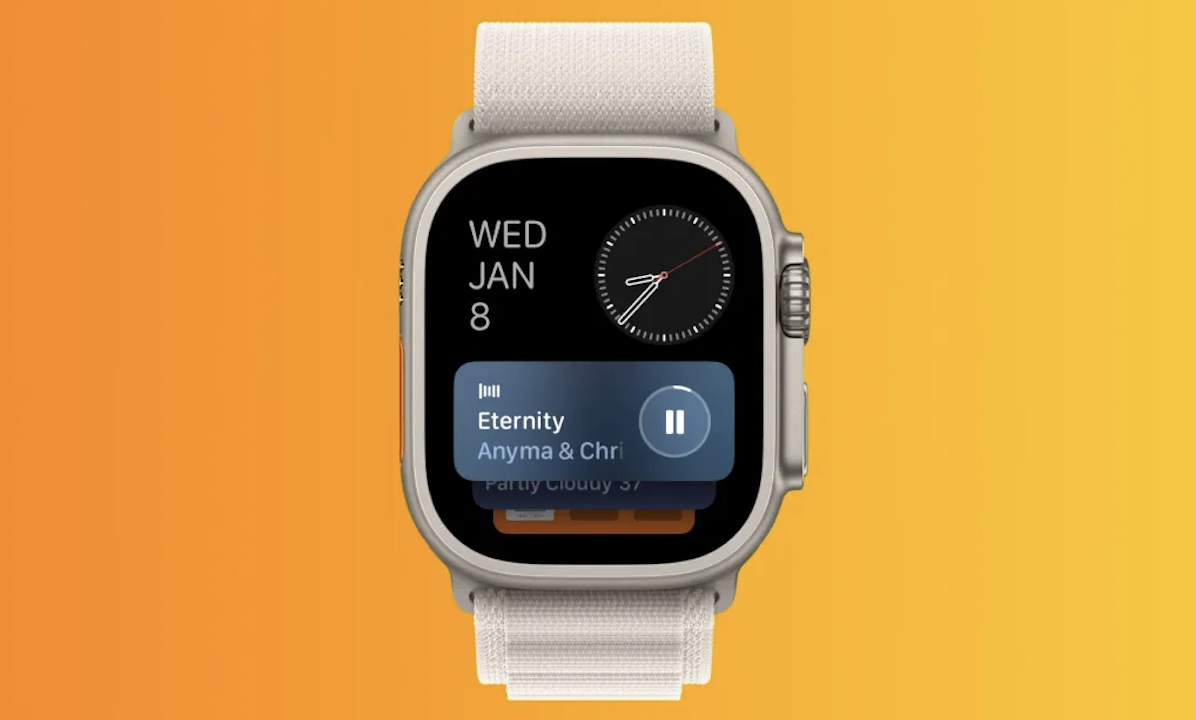
The Smart Stack in watchOS 26 feels intelligent and responsive. It displays widgets based on your daily routine. You rotate the Digital Crown to access it instantly. However, Live Activities can interrupt your watch face unexpectedly. Many users face this frustrating issue daily. You raise your wrist to check the time. Instead, media controls suddenly appear. Sometimes a cooking timer replaces your customized watch face. Although Live Activities offer useful updates, they can feel intrusive. Therefore, you need better control over your Apple Watch display.
Fortunately, you can fix this issue quickly. The process takes less than a minute. Open Settings on your Apple Watch first. Then tap Smart Stack to continue. After that, select Live Activities. Finally, turn off Auto-Launch Live Activities. Once disabled, interruptions stop immediately. However, Live Activities remain available when you need them. You simply scroll manually to view them. As a result, your watch face stays clean and distraction-free.
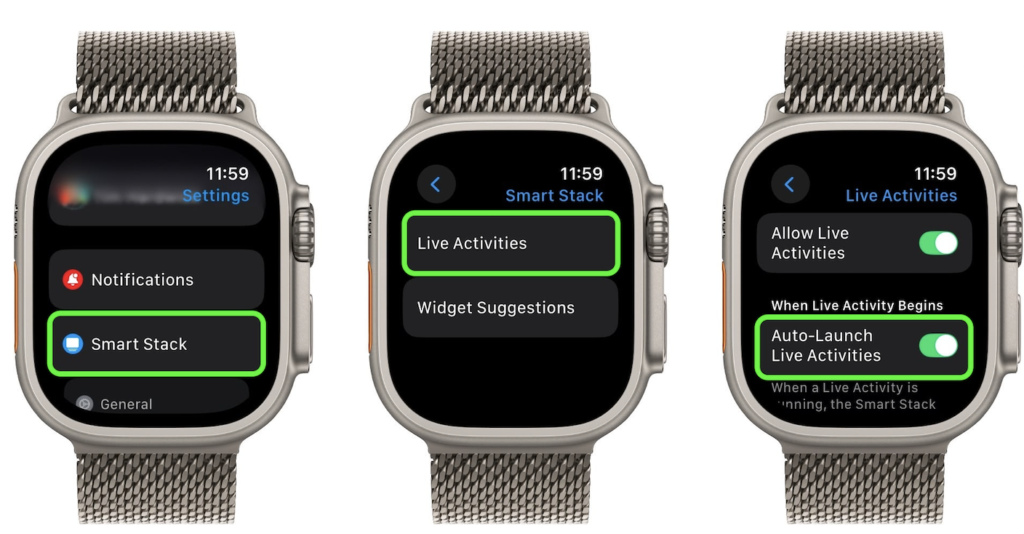
You can also refine your experience further. watchOS 26 provides granular control options. From the same Smart Stack settings, manage Apple app permissions easily. Select which apps can display Live Activities. Additionally, use the Watch app on your iPhone for deeper control. There, adjust Live Activities for third-party apps. Consequently, only relevant notifications appear on your screen. Unnecessary interruptions disappear almost instantly.
Media controls often cause the most frustration. For example, someone streaming on Apple TV can trigger them. Even background playback may activate Live Activities. To solve this, open Settings again. Then choose Media Apps inside Smart Stack options. Turn off Live Activities completely if needed. Alternatively, select Smart Stack instead of Auto-Launch. This setting limits automatic takeovers effectively. Therefore, your watch face remains visible most of the time.
Live Activities enhance functionality when used correctly. However, constant interruptions reduce convenience significantly. By adjusting these settings, you regain full control quickly. Your Apple Watch becomes efficient and focused again. Take time to personalize your Smart Stack today. Ultimately, small changes create a smoother and smarter daily experience.